
10 Must Know Image Optimization Tips
If you run an online store, image optimization is an art that you want to master. From attracting shoppers perusing Google images to reducing site load time - image optimization can be an important part of building a successful ecommerce business.
Have you ever stayed up at night wondering:
- Why is it that when I do a Google image search, my product photos never show up?
- Do I need to add "Alt Tags" to my images?
- What's the difference between a JPEG, GIF and PNG - should I use one over another?
In this post I'm going to answer those questions and more. Prepare yourself for a deep dive into 10 "must-know" image optimization tips:
1. Name Your Images Descriptively and in Plain English
It's really easy to blast through hundreds of product shots and keep the default file name your camera gives them. But before you keep that habit, let's discuss why that's not a good idea.
When it comes to SEO, it's important to use acceptable keywords to help your webpage rank on search engines. Creating descriptive, keyword-rich file names is absolutely crucial for image optimization. Search engines not only crawl the text on your webpage, but they also search for keywords within your image file names.
Let's use this image as an example:
You could use the generic name that your camera gave to the image such as DCMIMAGE10.jpg. However, it would be much better to name the file: 2012-Ford-Mustang-LX-Red.jpg
Also think about how your customers search for products on your website. What naming patterns do they use when they search? In the example above, car shoppers may search using the terms:
- 2012 Red Ford Mustang LX
- Ford Mustang LX Red 2012
- Red Ford Mustang LX 2012
A good habit to get into is to look at your website analytics, and see what phrasing patterns your customers use to perform searches. Determine the most common naming patterns they use, and apply that formula to your image naming process.
If you are not going to get that detailed, just be sure to use good keywords when naming your images (and try to be descriptive!).
Check out this Q&A from seomoz.org to understand the importance of naming files for the images on your website. It can definitely increase your on-page SEO, and help your website and images rank highly.
2. Optimize Your Alt Tags Intelligently
Alt tags are a text alternative to images when a browser can't properly render them. Even when the image is rendered, if you hover over it with your mouse pointer, you can see the alt tag text created for that image (depending on your browser settings).
The alt attribute also adds SEO value to your website. Adding appropriate alt tags to the images on your website can help your website achieve better rankings in the search engines by associating keywords with images. As a matter of fact, using alt tags is probably the best way for your ecommerce products to show up in Google image and web search.
Let's take a look at the source code of an alt tag:
 The #1 priority when it comes to image optimization is to fill out each alt tag for every product image on your site.

Here are some simple rules when it comes to alt tags:
- Describe your images in plain English, just like you do for image file names.
- If you sell products that have model number or serial numbers, use them in your alt tag.
- Do not keyword stuff your alt tags (for example: alt="ford mustang muscle car buy now cheap best price on sale").
- Don't use alt tags for decorative images. Search engines may penalize you for over-optimization.
Finally, always do a sanity check of your website from time to time. View the source of your webpages and check to see if your alt tags are filled out.
3. Strategize Your Image Dimensions and Product Angles
One common trend these days is to show multiple angles of your product. Going back to the Ford Mustang example, you wouldn't want to show just one shot of the car - especially if you're trying to sell it. It would be in your best interest to show shots of:
- The interior.
- The rear, especially that air spoiler.
- Close ups of the wheel rims.
- Underneath the hood... it is a Mustang after all.
And the best way to capitalize on these extra photos is to fill out your alt tags. And the way you would do that is by creating unique alt tags for each product shot:
- 2012-Ford-Mustang-LX-Red-Leather-Interior-Trim.jpg -> using the alt tag of: alt = " 2012 Ford Mustang LX Red Leather Interior Trim "
- 2012-Ford-Mustang-LX-Red-Rear-View-Air-Spoiler.jpg -> using the alt tag of: alt = " 2012 Ford Mustang LX Red Rear View Air Spoiler "
The key here is to add descriptions to your base alt tag so that potential searchers land on your website. If you do the extra work, Google will reward you with hungry searchers.
A Word of Caution About Providing Larger Images
Now you might want to provide larger views for your visitors, which is a great user experience enhancement - just be careful.
Whatever you do, don't place the largest image on your webpage and simply shrink the dimensions via the source code. This will increase your page load time because of the larger file size associated with the large image.
Instead, make it a smaller image and provide the option to view a larger image in a pop-up or to be displayed on a separate webpage.
4. Reduce the File Sizes of Your Images
Consider this:
- Most consumers wait about 3 seconds for a website to load on a desktop or laptop.
- ...and about 5 seconds on their mobile device.
- Amazon found that if their pages slow down by 1 second, they lose $1.6 billion a year.
- Google uses page load time as a factor in their ranking algorithm.
If you have images that slowly "drool" down the screen and take over 15 seconds to load - well, you can count that prospective customer goodbye!
So What Do You Do?
When a customer goes to your site, it can take a while depending on how large your files are. Specifically with images, the larger the file size the longer it takes a webpage to load. *Shopify merchants should note that we automatically compress images, so this shouldn't be an issue for you.
If you can decrease the size of the image files on your webpage and increase pageload speed, less people who visit your site will click away.
One way you can reduce image file size is by using the "Save for Web" command in Adobe Photoshop. When using this command, you want to adjust the image to the lowest file size acceptable while keeping an eye out for image quality.


What If You Don't Have Photoshop?
If you don't have Adobe Photoshop there are numerous online tools you can use for image editing. Adobe even has an online image editing application at photoshop.com. This online tool doesn't have all of the capabilities of the desktop version of Adobe Photoshop, but it covers all the basics of image editing and doesn't cost an arm and a leg.
Other impressive online image editing tools are:
- PicMonkey - has been described by experts as a "staggeringly great photo editing tool".
- Pixlr - is super user-friendly, and also comes with a 100% free app for your smartphone, so you can edit on the go.
- FotoFlexer- is another fairly advance online image editor. FotoFlexer even allows you to work with layers!
Finally, there is always GIMP. GIMP is an open-source, free image editing software application that can be run on Windows, Mac or Linux. It can do everything Photoshop can do, but tends to be a bit clunkier. But for a free image editing application - you can't beat it.
How Large Should My Image Files Be?
A good rule of thumb for ecommerce images is to try to keep your image file size below 70kb. That can be difficult sometimes, especially for larger images, but I'll get into that in a minute...
5. Know Which Image File Type to Use for the Right Situations
There are three common file types that are used to post images. These are JPEG, GIF, and PNG.
Let's look at the 3 file types and how they affect the same image:

JPEG (or .jpg) images are a somewhat of an old file type and has become the de facto standard image of the Internet. JPEG images are able to be compressed considerably, which results in quality images with small file sizes. In the image above, the JPEG format provides nice quality and low file size.
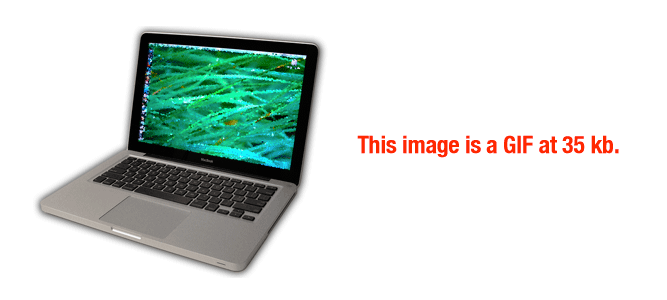 GIFs (.gif) are lower quality images than JPEGs and are used for more simple images such as icons and decorative images. GIFs also support animation as I'm sure all you Redditors know. Regarding image optimization, it's great to use GIFs for the plain and simple images on a webpage (that are just a few colors), but for complex images and photos, GIFs are not always as attractive - this is especially true for bigger and more photoesque image.
The MacBook GIF above is a case where we can get away with using GIF. This is because the photo is small enough where GIF works well.
GIFs (.gif) are lower quality images than JPEGs and are used for more simple images such as icons and decorative images. GIFs also support animation as I'm sure all you Redditors know. Regarding image optimization, it's great to use GIFs for the plain and simple images on a webpage (that are just a few colors), but for complex images and photos, GIFs are not always as attractive - this is especially true for bigger and more photoesque image.
The MacBook GIF above is a case where we can get away with using GIF. This is because the photo is small enough where GIF works well.
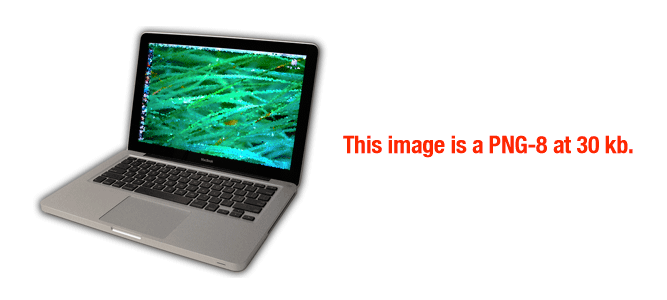
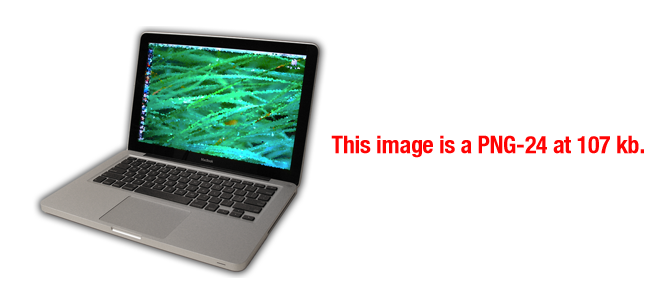
PNG images are becoming more popular as an alternative to GIFs. PNGs support many more colors than GIFs, and they don't degrade over time with re-saves like JPEGs. Even though the PNG file type is starting to be used more, the file sizes can still be much larger than what you would find with JPEG images.
Notice how the PNG-24 image is over three times larger in file size than the PNG-8 version. This is why you need to be very careful with PNGs.
Here's an extreme example, where the image file size has been held constant at 24 kb for all three files formats:
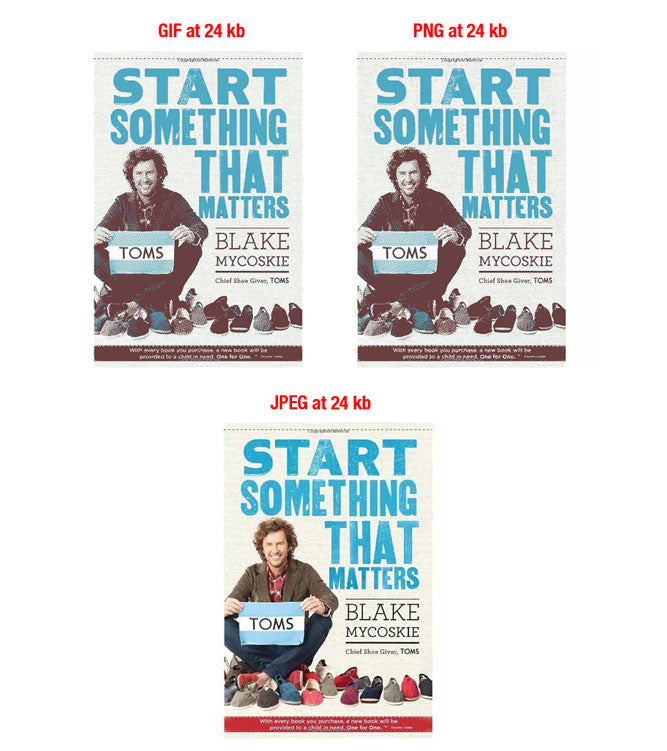
As you can see, JPEG is the clear winner here. GIFs and PNGs must degrade in quality in order to stay at a low file size.
Here are some tips to remember when choosing file formats:
- For most ecommerce situations - JPEGs will be your best bet. They provide the best quality and the smallest file size.
- Never use GIFs for large product images. The file size will be very large and there is nogood way to reduce it. Use GIFs for thumbnails and decorative images.
- PNGs can be a good alternative to both JPEGs and GIFS. If you are only able to get product photos in PNG format, try using PNG-8 over PNG-24. PNGs excel at simple decorative images because of their extremely small file size.
Most image editing software can save images to any of the file types discussed above.

6. Know How To Handle Your Thumbnails
Many ecommerce sites will use thumbnail images. They provide a great way to quickly scan category pages without taking up too much real estate.
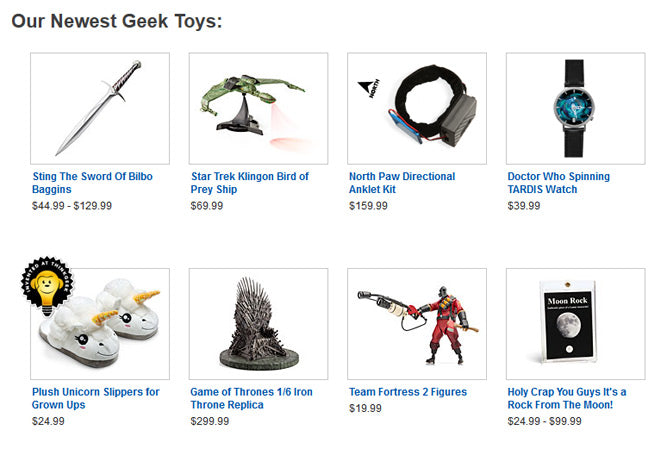 Thumbnails are great, but be careful - they can be a silent killer to your page loading times. They are usually presented in a critical step during the shopping process, and if they are holding up your category pages from loading - well, you could just lose another customer. Note that Shopify merchants don't have to worry about thumbnail optimization as we take care of that for you.
- Make your thumbnail file sizes as small as possible. It may be worth letting quality slide in favor of a lower file sizes. Remember, the cumulative effect of your thumbnails will have a huge effect on your page loading time.
- Vary your alt tag text as to not duplicate text that you would use for the bigger versions of the same image. As a matter fact, make your alt text wildly different. The last thing you want is the thumbnail being indexed instead of the large image. A case could be made to leave out the alt text entirely.
7. Use Image Site Maps
If your site uses JavaScript galleries, image pop-ups or other "flashy" ways to improve the overall shopping experience - Google image site maps will help you get your images noticed by Google.
Web crawlers can't crawl images that are not called out in the webpage source code. So in order to let them know about these images, you must list their location in an image site map.
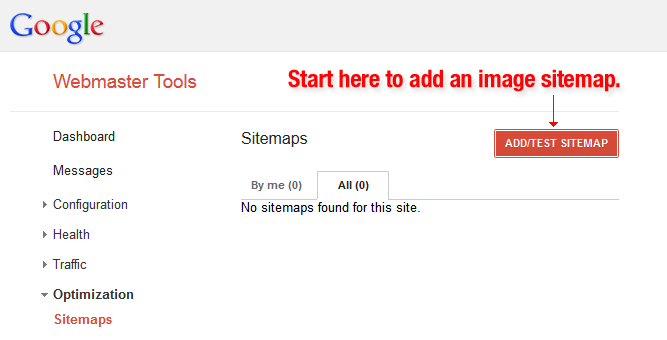 Google has many guidelines for image publishing to help your website rank high on the search engine that you can view here. In addition, you can use the extension for images on Google Sitemaps to give Google more information about the images on your website, and doing this can help Google find more images than what would be conventionally found through their search engine.
Although using Sitemaps doesn't guarantee that your images will get indexed by Google, you can absolutely increase the optimization of your website, and especially the images by using Sitemaps.Google Webmaster Tools has many suggestions for correctly formatting your Sitemap and the images for your Sitemap.
On Google Sitemaps it is important for you to add specific tags for all of the images. You can also create a separate Sitemap to list images. What is important is to add all the necessary information, while using specific tags, to any Sitemaps you have or will create. Follow these guidelines that Google suggests when creating a Sitemap with image information.
Google has many guidelines for image publishing to help your website rank high on the search engine that you can view here. In addition, you can use the extension for images on Google Sitemaps to give Google more information about the images on your website, and doing this can help Google find more images than what would be conventionally found through their search engine.
Although using Sitemaps doesn't guarantee that your images will get indexed by Google, you can absolutely increase the optimization of your website, and especially the images by using Sitemaps.Google Webmaster Tools has many suggestions for correctly formatting your Sitemap and the images for your Sitemap.
On Google Sitemaps it is important for you to add specific tags for all of the images. You can also create a separate Sitemap to list images. What is important is to add all the necessary information, while using specific tags, to any Sitemaps you have or will create. Follow these guidelines that Google suggests when creating a Sitemap with image information.
Comments
Post a Comment